KosherOS
A family computer that is filtered, locked down, and still a real computer.
A Linux distribution for frum families: a modern GNOME desktop on an immutable Fedora base, with a content filter that lives on the machine itself and a parent in charge without anyone having root. Powered by Fedora.
Pre-alpha
Everything here is built and covered by tests, but very little has been lived with on a real machine yet. See what is and is not proven.
Releases What works How it is built
The idea
Most kosher filters are a service you subscribe to and a browser you are told to use. KosherOS is an operating system. The filter runs on the machine, works for every browser and every app, cannot be uninstalled by the person it applies to, and is configured by a parent in the family's own words: hide immodest pictures, replace bad language with a milder word.
Three ideas hold it together.
Complete out of the box. A parent installs it, puts each person in a group of their own naming — or leaves the strict default — and is done. The category lists, word lists and picture filter ship whole; adding a site or a word is possible, but never required.
Local first. Filtering happens on the device, on modest hardware, with no account and no subscription. Nothing about what the family reads leaves the house.
Locked, not hidden. There is no root. The root filesystem is read-only and updates are atomic and signed. The one privileged surface is a small daemon, and the only thing it will do for a parent is what the app offers. An optional second guardian password (the other spouse's) is required on top for any change that weakens the filter.
What a family gets
Groups the family names. Nothing ready-made ships: Child means something different in every home. A parent tunes one account, saves it as a group, and puts the others in it; change the group and every account in it changes. An account in no group gets the strict default, and each kind of internet comes with complete settings of its own. The groups below are examples of what a family might make (they are the sample family's), not something the system decides for them.
| Group | Web | Pictures | Language | YouTube | Apps |
|---|---|---|---|---|---|
| Default (no group) | filtered: adult, gambling, dating, social, video and more blocked | immodest hidden | replaced | strict; entertainment, gaming, music and Shorts blocked | approved apps only |
| Little ones | only an approved list of sites | none from the web | replaced | none | approved apps only |
| Kids | filtered: adult, gambling, dating, social, video and more blocked | immodest hidden | replaced | strict; entertainment, gaming, music and Shorts blocked | approved apps only |
| Teens | filtered: adult and gambling blocked, news and approved video allowed | immodest hidden | replaced | moderate | the whole store, games blocked |
| Grown-ups | filtered: adult content and filter bypasses blocked | immodest hidden | left alone | moderate | the whole store |
Filtering that reads the page, not just the address. In the filtered modes the machine inspects the connection locally, so it can block a page rather than a whole site, clean up language on a page that is otherwise fine, judge a page nobody has catalogued by its words, cover the figure in a picture instead of blanking the site, look inside a video a few frames at a time, and apply YouTube limits inside the app rather than on top of it. Ads and trackers are blocked at the resolver for every account, the way a Pi-hole does it. See content filtering and media filtering.
Search that respects the filter. A local SearXNG behind a KosherOS front end filters results with the same policy as the traffic, so a filtered user never clicks into a block page and a whitelist user can finally see what the whitelist contains. See search.
Apps, as much of the store as each account should have. The KosherOS Store installs from upstream Flathub. An account starts with only the apps a parent has approved. A parent can open an account, or a whole group, to the whole store and block kinds of app (games, internet, music and so on) or single apps; the blocks apply to running as well as installing. An account opened to the store never sees an app rated for nudity, sexual themes, bad language, gambling, drugs or graphic violence, or a tool for getting around the filter, unless a parent approves it by name. The Store keeps apps current: an Updates shelf is always there, with a Check for updates button that asks Flathub, one button per app and one for all of them. Installed lists everything on the machine and Installing shows what is in hand. A guest account can be switched on, given its own kind of internet, and is wiped at sign-out.
A window for the person being filtered. My Filter is a read-only app on every account that says, in plain language, what applies to you. A child who can see the rules is likelier to accept them than one who only ever meets a blocked page.
What the parent sees
Signed in as an administrator, the admin app and the system settings never ask for a password; on any other account the admin app asks for an administrator's password once and keeps it for the sitting.
Everyone chooses their own password the first time they sign in, and changes it afterwards in Settings under Users. A forgotten one is not the end of the account: a parent resets it from the person's Account tab, and the login screen asks them for a new password at their next sign-in. Nobody is ever handed a password somebody else has read, and an administrator's own password can only be changed by that administrator.
-
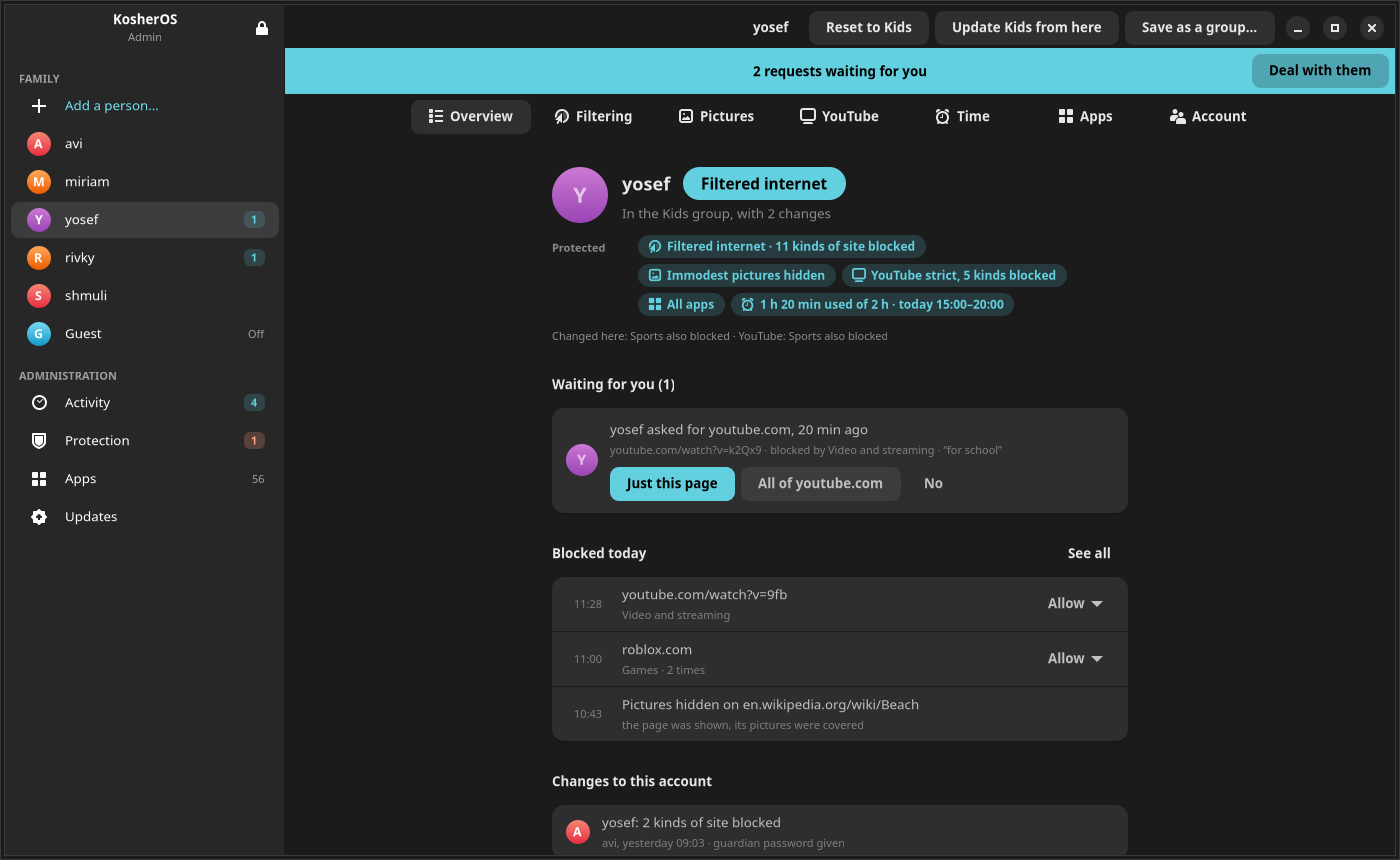
One person, one page. The filter mode as a badge, the protection as chips, how far the account has drifted from its group with a way back, what was blocked today with an Allow button beside it.
-
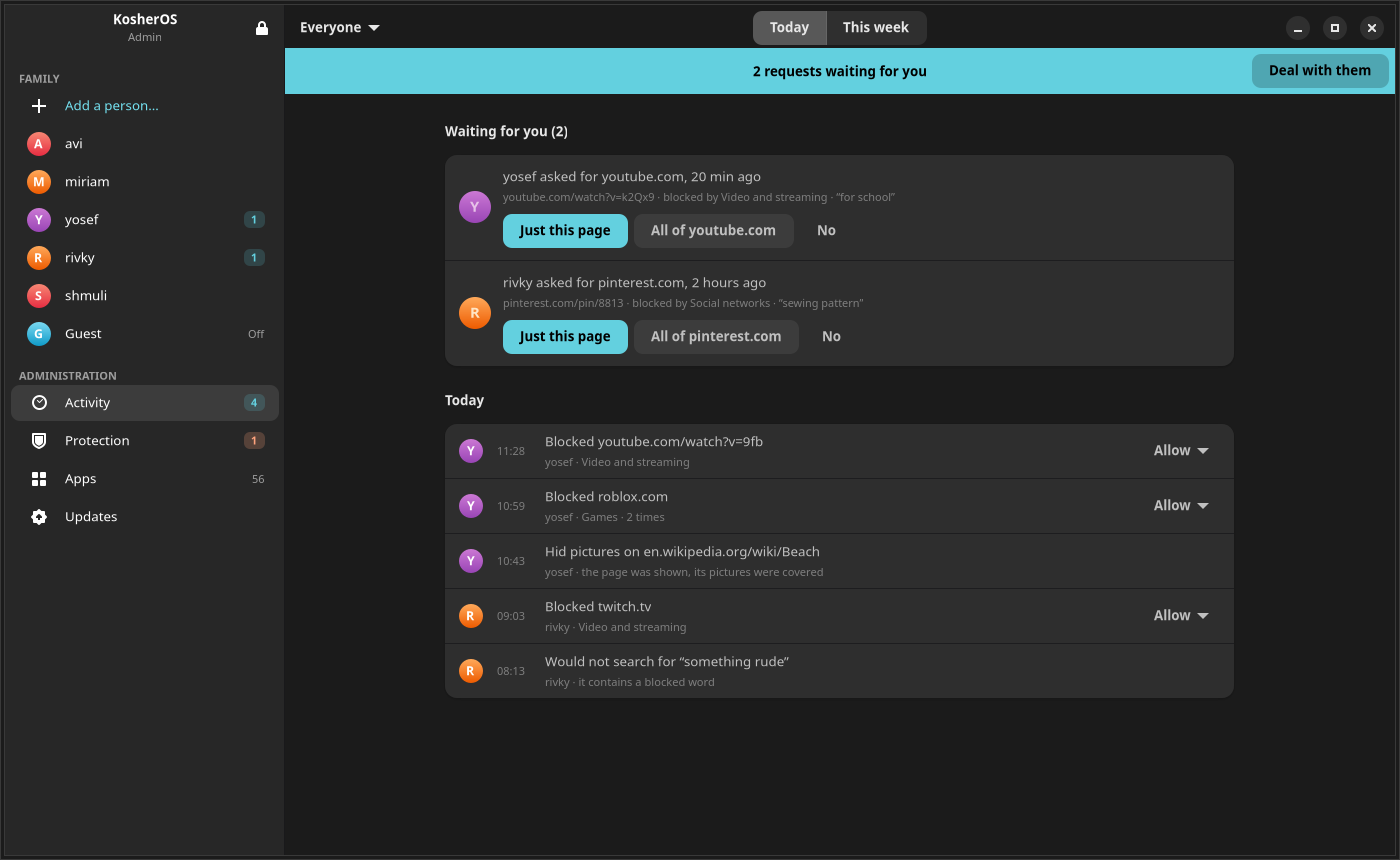
The filter's own diary. What it blocked, hid or refused, newest first, with the people as filters. A record of the filter, not of the person: what was allowed through is never written down.
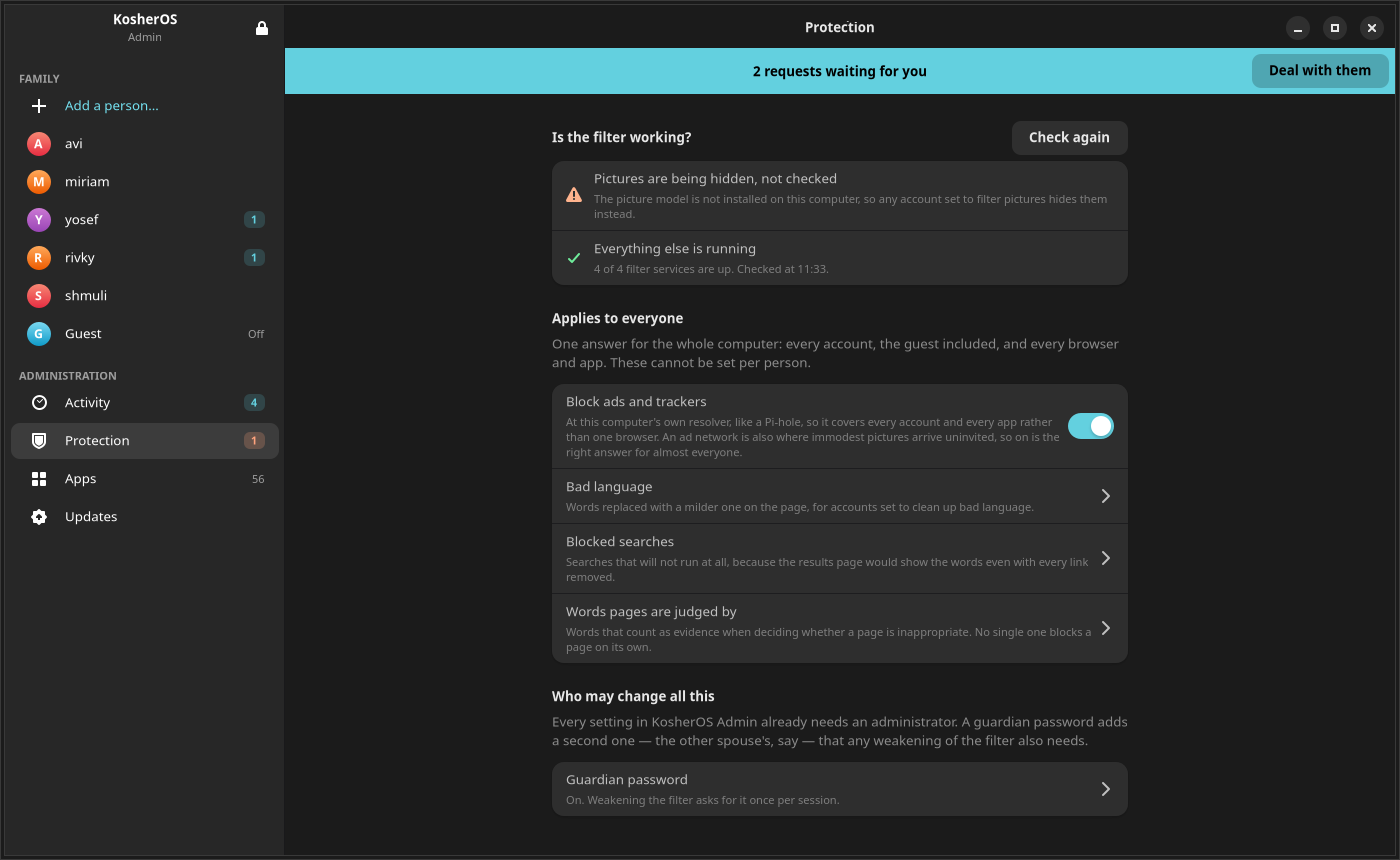
Everyone is one click away. The sidebar lists the family by name, with a badge when somebody is waiting on an answer, and below them Administration: the activity feed and what is not about one person, in three pages — Protection, Apps and Updates. Protection opens on whether the filter is actually working, and then on the things one machine can only answer once — ad and tracker blocking, the word lists, the guardian password. Updates shows the version the computer is running, what an update would bring, the way back if one went wrong, and which of the two streams of updates it follows: Stable, which almost every family wants, or Edge, which gets every new build the day it is made. Moving between them downloads the other version now and starts using it at the next restart; nothing on the computer is lost.
Requests come first: when somebody asks for a blocked page from the block page, a blue banner under the page's header says so and one click answers it. Filter health is honest: if picture checking has backed off or a service is down, Protection wears an amber count in the sidebar and its page says exactly what is not being enforced.
How it works
flowchart LR
    subgraph desktop [GNOME desktop]
        Admin[KosherOS Admin]
        Store[KosherOS Store]
        MyFilter[My Filter]
    end
    subgraph daemon [kosherd, the only privileged surface]
        DBus[D-Bus API, polkit gated]
        Policy[(policy.json)]
        Activity[(activity log)]
    end
    subgraph enforcement [Enforcement, per account]
        NFT[nftables: per-user rules]
        DNS[dnsmasq: family DNS, ad blocking]
        Proxy[mitmproxy: pages, pictures, video]
        Search[SearXNG + KosherOS front end]
        MCT[malcontent: which apps each account may run]
    end
    Admin -->|Unlock once| DBus
    Store --> DBus
    MyFilter -->|read own settings| DBus
    DBus --> Policy
    Policy -->|rendered on every change| NFT & DNS & Proxy & Search & MCT
    Proxy & Search -->|what they blocked| Activity
    Activity --> Admin
Nobody has root: no sudo is shipped, the root account is locked, and a polkit rule
removes every polkit admin identity. Members of the kosher-admin group are granted the
org.kosherlinux.* actions instead, and one unlock opens a sliding session so nothing
prompts again. Full detail in architecture.
Getting started
KosherOS is pre-alpha and nothing is hosted for download yet, so trying it means building it. From a clone, inside the devenv shell:
just build        # build the OS image
just vm           # make a bootable disk from it (needs sudo)
just try          # boot a throwaway copy; the first boot runs the setup wizard
To install on real hardware, just release-iso builds an installer ISO from the published
stable image, so the machine it installs follows the stable channel and updates itself.
just usb-image writes a system you can try from a USB stick without touching the internal
disk.
To look at the apps without installing anything, just admin-demo and just store-demo
open them against a pretend daemon with a sample family.
Status
Built and covered by tests: over twelve hundred unit tests, widget tests that build the real GTK screens, and live checks that exercise the firewall, the resolver and the proxy inside the built image.
Not yet proven: time on a booted machine. Several recent pieces have been seen rendering but not used on a real KosherOS session, and the update-rollback path has never fired for real. Treat every claim here as "built and tested", not "proven in a home".
Where the project is going next is on the deployment page, and every build so far is on the releases page.